
Student Manual
Section outline
This book contains instructions of how to use various tools to submit assignments in Moodle.
Sending a Message to the Instructor
Moodle provides you a "Messaging" tool that shares messages within the software and can function similar to instant messaging if both users are online at the same time. Sending your instructor a message can be very important, especially if emergencies arise or when you need clarification on assignments or instructions. Make sure to check the course syllabus to see whether the instructor has alternate preferred methods of communication or office hours that are convenient for you. The following instructions show how to send a message through the participants list.
Click Participants on your course menu
.
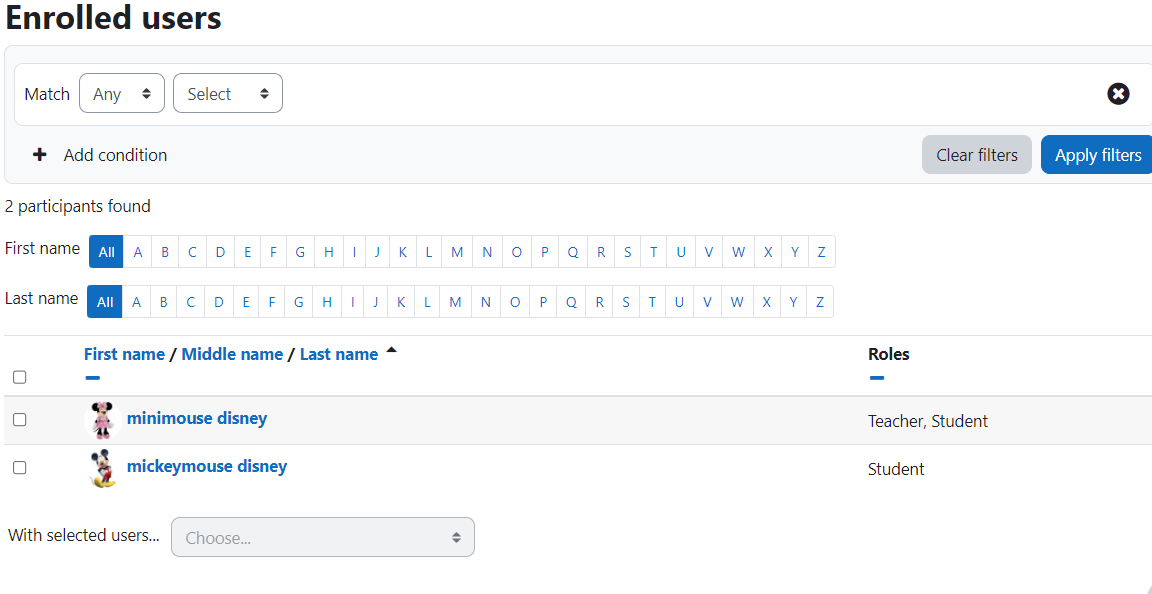
You can narrow this list to include only the instructor. To do this, locate the drop-down menu that says "Select". Select "Roles". In the "Type or select" dropdown menu choose "Teacher". Click the selection box beside your instructor's name. In the "With selected users" dropdown menu choose "send a message".
The Message course users page appears.
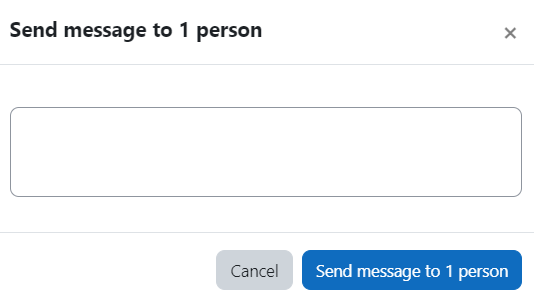
Use the text box to compose a message to your instructor.
You can also send messages through the user dropdown menu of your course. Click on the dropdown menu of your course and select Messages. A search box will appear that will allow you to search for a name, click on the person's name when it appears and you will see a textbox labeled "write a message...".
3.
6.
背景色
フォント
フォントカーニング
文字の大きさ
画像の可視性
文字間隔
行の高さ
リンクの強調
文字の色