
Student Manual
Section outline
This book contains instructions of how to use various tools to submit assignments in Moodle.
Posting to a Discussion Forum
Forums are often used in online courses to simulate class discussions. Students are often required to post their original thread then respond to other students.
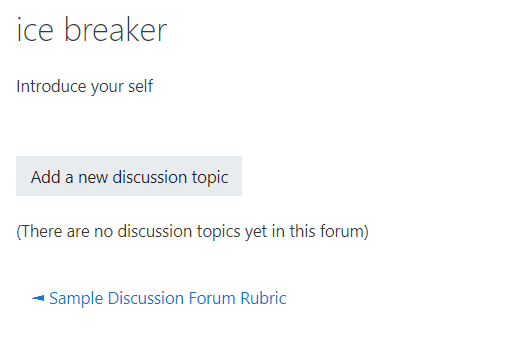
To add a discussion
- Click the “Add a new discussion topic” button.
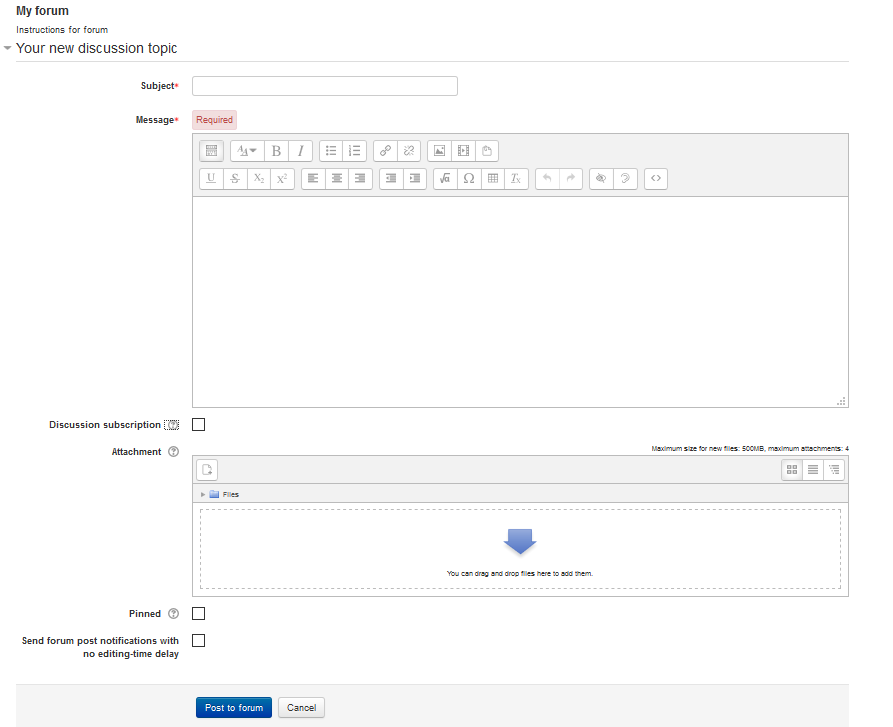
- On the new discussion topic page enter a subject.
- Type your message in the textbox provided. (This textbox is very similar to using MS Word or any word processor.)
- There may be times you need to attach a file if so, locate the "Attachment" section and upload your file there.
- Click the “Post to forum” button. (You have 5 minutes to edit your post before it is visible for other users in the course.)
- To reply to a discussion, click on the subject of the thread you would like to respond to (this is in the "discussion" column) then click on the reply link at the bottom right.

NOTE: There may be times that your instructor requires you to post your thread before being able to view anyone else's responses. They will provide these instructions for you in Moodle. If this happens, just know that you will not see other student posts until 5 minutes after your post has been submitted.
背景色
フォント
フォントカーニング
文字の大きさ
画像の可視性
文字間隔
行の高さ
リンクの強調
文字の色