Student Manual
How to Log in to Moodle
-
Go to the Moodle Website
-
Open your web browser (Chrome or Firefox recommended).
-
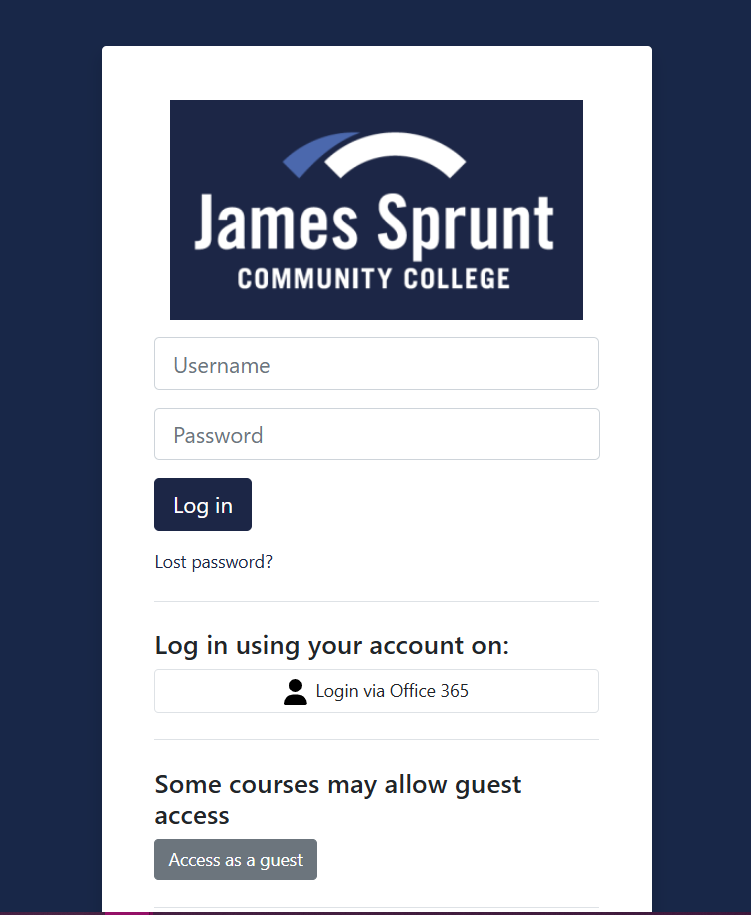
Enter: https://moodle.jamessprunt.edu/ or go to the James Sprunt Community College website, click the Campus Toolbox tab, and select Moodle from that list.
-
-
Enter Your Credentials
-
Username: Use your login (details on the previous page).
-
Password: Use your birthday (get help on the previous page) or a password that you set yourself.
- If your Office 365 email is open you can click the"Login via Office 365" option.
-
-
Forgot Your Password?
-
Click the “Lost password?” link on the login page.
-
Follow the instructions to reset your password using your JSCC email account.
-
If you still cannot log in, contact Just Ask Tech Support: 910-275-6400 or justasktechsupport@jamessprunt.edu.
-
-
After Logging In
-
You will land on the Home page.
-
Click My courses, where you can see all your courses.
-
Select a course name to enter it.
-
Background Colour
Font Face
Font Kerning
Font Size
Image Visibility
Letter Spacing
Line Height
Link Highlight
Text Colour